KSign iOS has become a topic of discussion among iPhone and iPad users due to its Premium features. There are tons of people who are using it to install IPA files on their iOS devices but some are encountering issues.
There are various issues or problems that KSign users are getting at the moment. The problem or error that most people are having at the moment are ‘Unable to Install’ or ‘Unable to Verify App’.
Besides these two errors, you might be encountering the KSign iOS app stuck on the Ready to Install screen. If that’s the case then click on the link to get the issue resolved.
In this guide, we will walk you through the process of fixing the KSign iOS Unable to Install or Verify App error. To learn the troubleshooting steps, keep on reading.
Without any further ado, let’s get started:
KSign Unable to Install or Verify App Problem Solutions (2026)
To resolve the KSign iOS Unable to Install or Unable to Verify app, follow the steps written below:
- First, visit KSign’s official website.
- After visiting the site, scroll down and click on the ‘KSign DNS Profile’ button.
- When you click on this button, you will taken to a landing page.
- There, you need to click on the WSF CFDNS button.
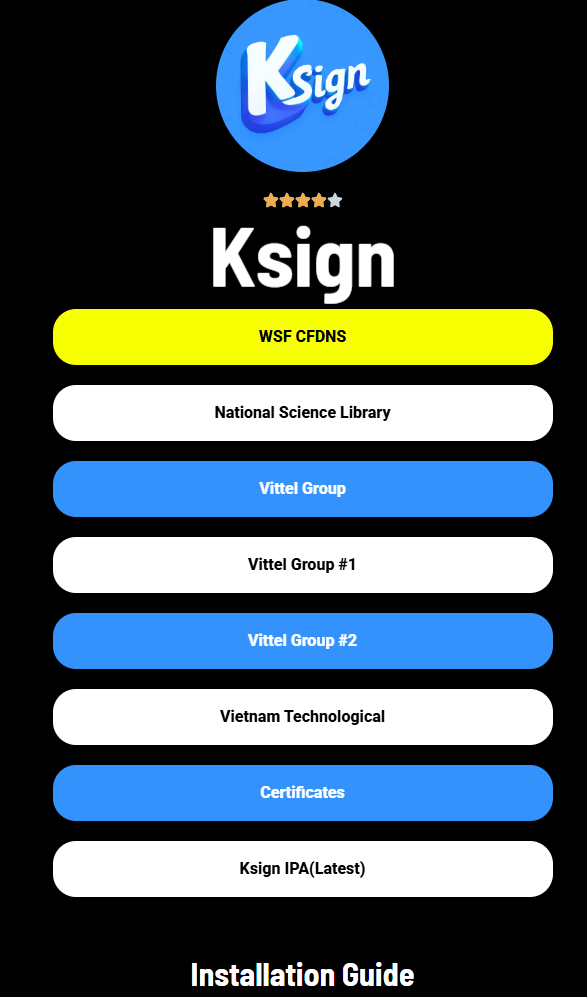
- When you do so, you will be asked to download the profile.
- Once downloaded, go to Settings and install the Profile.
- Make sure you don’t have multiple DNS installed on your device.
- If you want to get rid of KSign IOS errors, make sure to have only one profile installed at a time.
- Once the DNS is installed successfully, click on the Vietnam Certificates button.
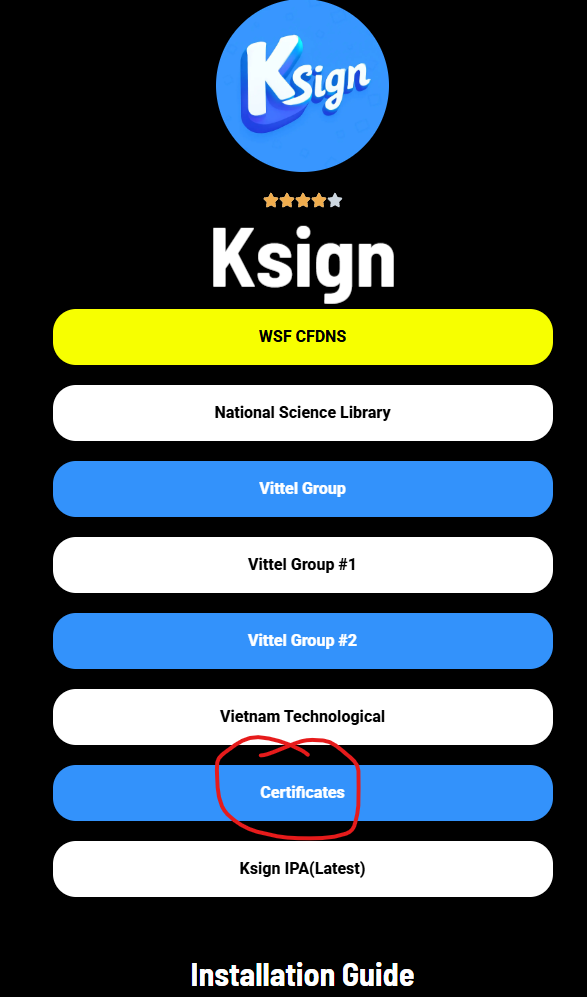
- You can install other certificates as well.
- Now, install the KSign app by following the on-screen instruction.
- When you do so, you will have the KSign app installed.
- Once installed, launch it.
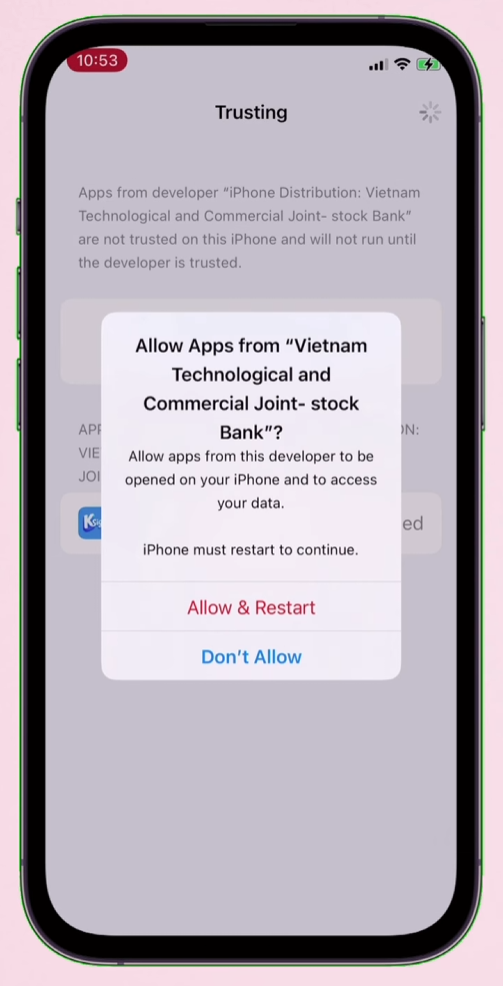
- When you do so, you might get a pop up, “Untrusted Enterprise Developer”
- To prevent this pop up again, go to Settings > VPN & Device Management > Enterprise App > Trust the Certificate > Allow & Restart the app.
- Now, go back to the same website and click on the Vietnam Certificates button.
- After downloading the Certificate, launch the Files app and Extract the Zip file.
- Once extracted, launch the KSign app and go to Settings.
- After that, tap on Certificates.
- Now, tap on the Import KSign File button.
- Now, select the Unzip Certificate file.
- When you do so, it will show the expiry date as well.
- Once imported, go to the Library Section and tap on the + icon and select ‘Import From Files’.
- Now, select the IPA file that you wish to install.
- Once selected, tap on it and the select ‘Sign & Install’.
- After that, tap on the Start Signing button.
- When you do so, a pop up will appear to Install the App.
- Now, tap on Install to begin the installation process.
- Once it is completed, launch the app and check if the issue is gone.
- That’s it.
That’s all you need to know about how to fix the unabe to install or verify error while using the KSign IOS app.