KSign iOS is the latest IPA Signer that everyone is talking about. This IOS app is pretty similar to ESign but has more premium features than the said IPA Signer.
As soon as the KSign was officially launched, tons of people thronged to its official website to download its configuration profile, DNS, and certificate.
There are thousands of IOS users are using the KSign iOS app but some are having issues while installing IPA files on their iPhone or IPad.
According to their complaints, whenever a user attempts to install an IPA file on iPhone using the KSign app, they are stuck on the Ready to Install window.
Also Read > How to Fix KSign IOS Unable to Install & Verify Problem
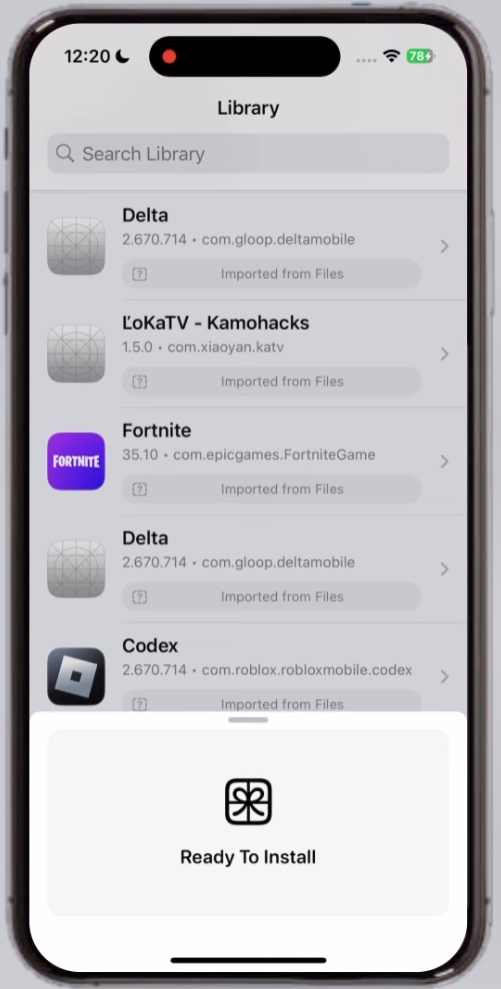
Unfortunately, it prevents them from installing the desired IPA files on iPhone using the KSign app. If you too are encountering the KSign iOS Ready to Install error then don’t worry because we have got you covered.
Being an official KSign iOS website, we don’t leave any stone unturned to help you out. Irrespective of what problem or issue you face on KSign, visit its official website and search for it.
If you don’t find a solution on its official site, you can directly reach out to our email to get your problem resolved.
Without any further ado, let’s get started:
KSign IOS Ready to Install Solutions (2026)
Here’s a step by step guide to resolve the KSign iOS app stuck on the Ready to Install screen:
- First, download and install KSign iOS app from its official website.
- If you don’t know how, click on the above link.
- Once installed, launch the KSign app.
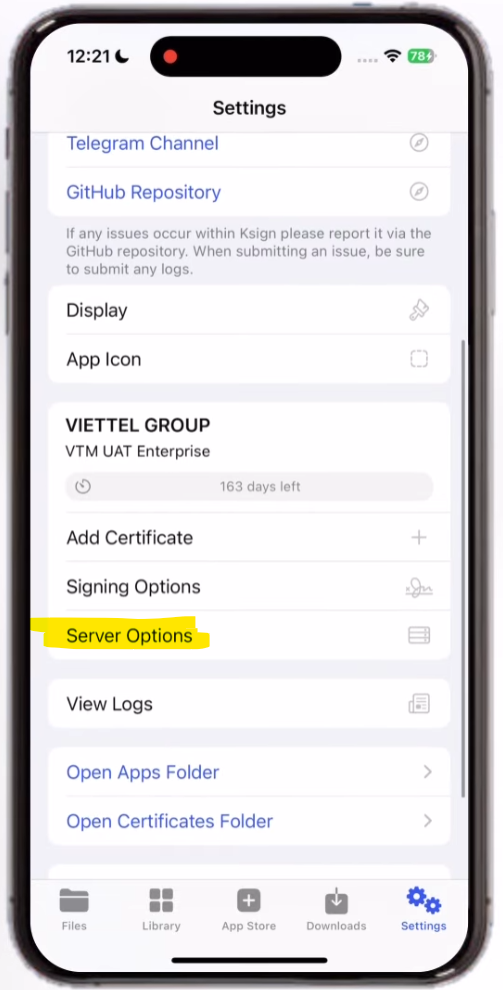
- After that, go to Settings.
- Now, scroll down and tap on the Server Options.
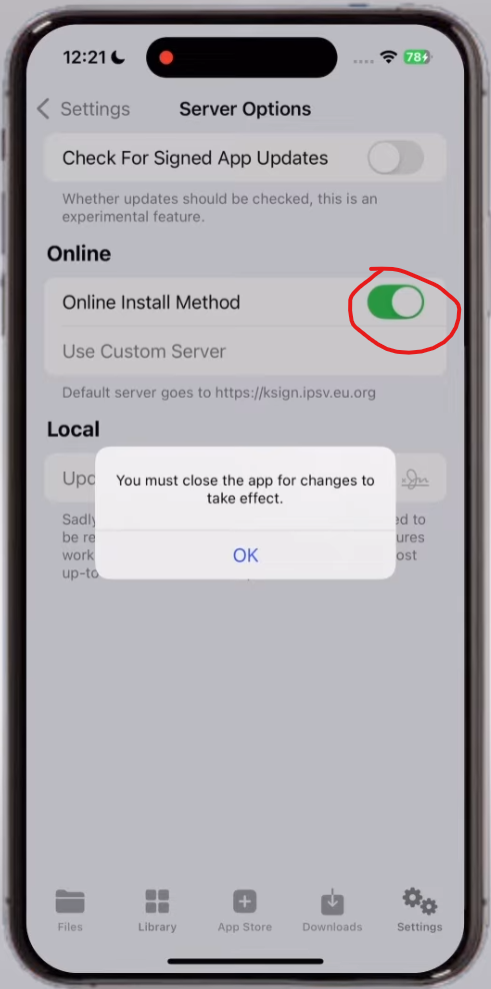
- In a new window, enable the Online Install Method option as shown in the above image.
- When you enable it, a pop up will appear on the screen that says, “You must close the app for changes to take effect.”
- Once enabled, go to KSign-ios.com.
- Now, scroll down and click on the KSign DNS Profile button.
- When you do so, you will be taken to a new website.

- There, scroll down and find the Enable Use Custom Server.
- Now, copy the Server URL.
- Now, open the KSign app again and go to Settings.
- Now, scroll down and click on the Server Options.
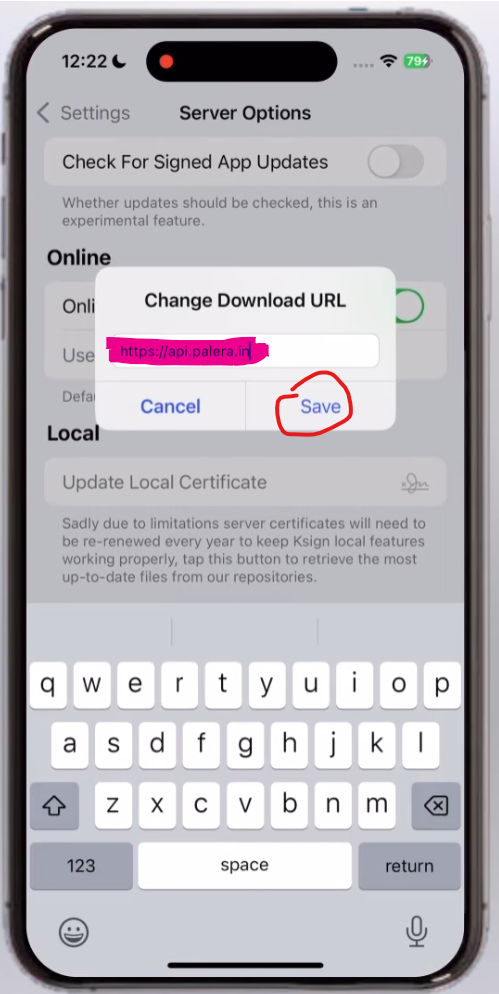
- Now, click on the Use Custom Server.
- Now, paste the copied URL into the text box as shown in the above image.
- Once entered, click on the Save button.
- Once done, go to Library section and tap on the IPA file that you want to install.
- Now, hit the Start Signing button.
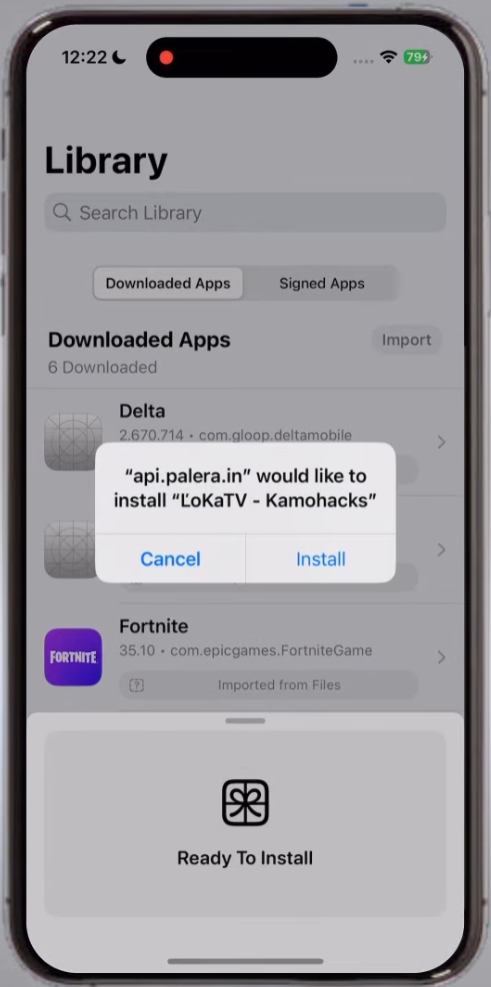
- Now, you will get the Install pop up.
- Tap on the Install button to install IPA file on iPhone or iPad using the KSign IOS app.
- That’s it.
That’s all you need to know about how to fix the KSign IOS Ready to Install error.